Security Basics: 2FA, Phishing and Scams to Watch For
How to protect your trading account: a strong password, authenticator-app 2FA, spotting phishing pages and messages, and the scams that most often target traders.
Your trading account holds real money and a direct route to withdraw it, which makes it a target. Yet most accounts are not lost to clever hacking. They are lost to tricks: a fake login page, a message from "support", or an offer that sounds too good to miss. Crypto adds one more twist, because a transfer sent to the wrong place usually cannot be reversed.
The good news is that a few habits block the large majority of attacks. This lesson covers your password, two-factor authentication (2FA), how to spot phishing, the scams aimed at traders, and what to do if something feels wrong.
Start with a strong, unique password
When you set a new password, Traders Portal asks for at least 8 characters with an upper-case letter, a lower-case letter and a digit. Treat that as the minimum. A passphrase of four or five random words is longer, stronger and easier to remember.
Most importantly, use a password you have never used anywhere else. When another website is breached, criminals try the leaked email and password pairs on other sites, a technique called credential stuffing. A password manager makes unique passwords painless.
Two safety features help you here. Changing your password signs out your other sessions, and password reset links expire after 30 minutes, so an old reset email in your inbox is useless to anyone else.
Turn on two-factor authentication
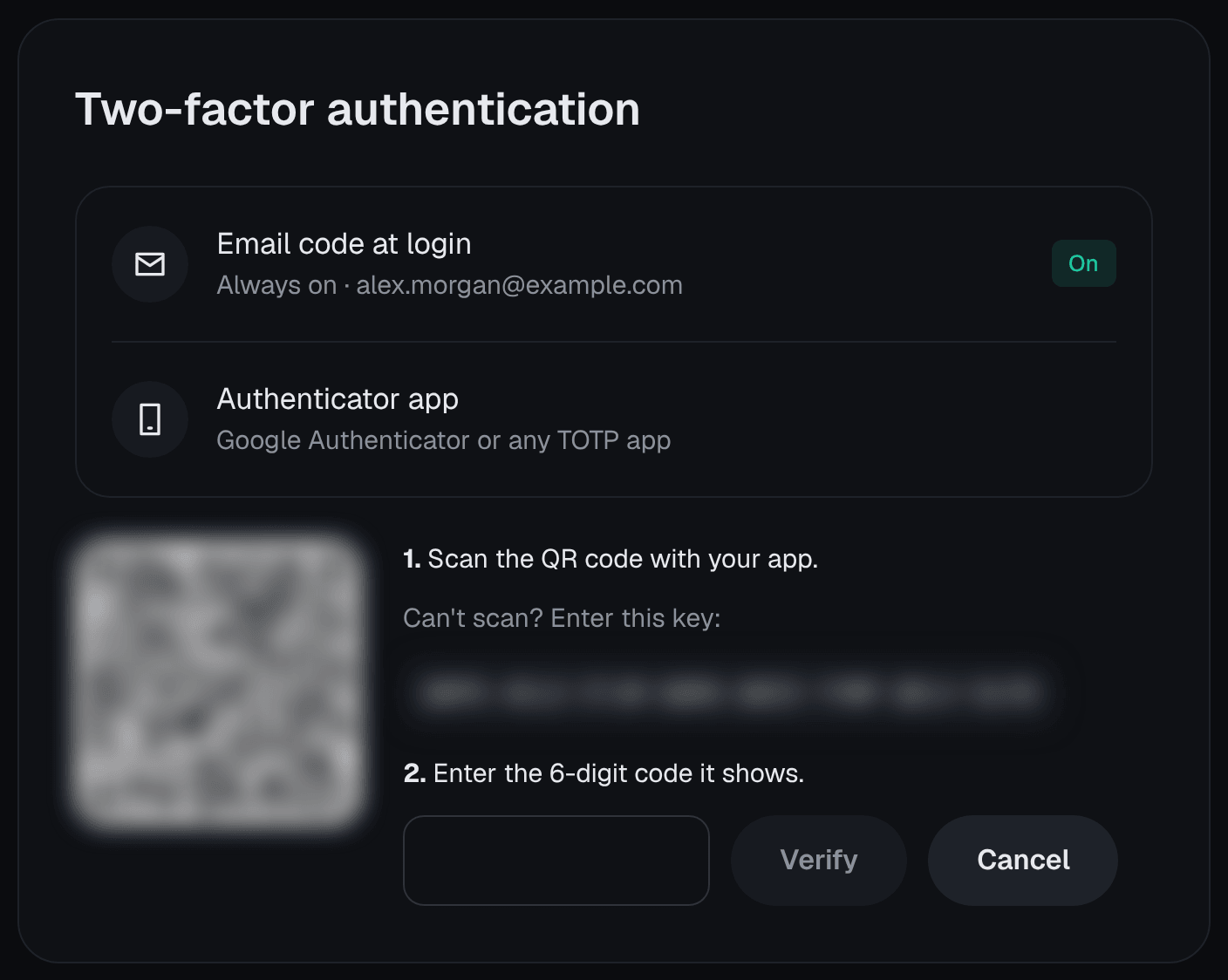
Two-factor authentication asks for something you know (your password) and something you have (your phone). On Traders Portal it uses an authenticator app, which generates a fresh six-digit code every 30 seconds on your phone, even offline.
- Install an authenticator app
Any standard authenticator app that supports time-based codes will work.
- Open your security settings
Go to Account → Personal information → Security, or open /account/security, and choose to set up the authenticator app.
- Scan the QR code and confirm
Scan the QR code with the app, then type the six-digit code it shows to prove the link works.
- Save your backup codes
You receive 10 backup codes. Each works once if you lose your phone. Write them down or store them offline, away from your phone.
From then on you will need a code from the app to sign in and to request a withdrawal.
How to recognize phishing
Phishing is an attempt to trick you into handing over your login details, usually through a fake page that looks exactly like the real one. The message that leads you there might be an email, a text, a social media post, a search ad or a chat message. Watch for:
- Urgency or threats: "Your account will be frozen in 24 hours unless you verify now."
- Lookalike web addresses: an extra letter, swapped characters or a different ending after the dot.
- Requests for secrets: your password, 2FA codes or backup codes, or "log in through this link to confirm".
- Unexpected downloads: an app, browser extension or "remote support" tool you are asked to install.
The simplest defense is never to log in from a link. Type the address yourself or use a bookmark. If you get an alert about a new sign-in from an unknown browser and it was not you, change your password straight away and contact support through Account → Support.
Scams that target traders
| Scam | How it works | Red flag |
|---|---|---|
| The "account manager" | Offers to trade for you, then asks for your login or remote access | Anyone asking to control your account |
| Fixed returns | A scheme promising steady daily or monthly profits | Returns that never have a losing period |
| Giveaways | "Send crypto, receive twice as much back", often using a famous name | Any offer that needs you to send first |
| Fake support | An "agent" contacts you first on social media or messaging apps | Support that finds you, not the other way round |
| Recovery services | Promise to get back lost funds for an upfront fee | Fees before anything is recovered |
| Online friends | A new contact gradually introduces an "amazing platform" | Investment talk from someone you have never met |
Protecting deposits and withdrawals
Crypto transfers are final, so a few extra checks are worth the seconds they take:
- Match the network. USDT deposits can arrive on TRC20, ERC20 or BEP20, but only on the network shown with the address you use. Withdrawals support USDT on TRC20 and ERC20, plus BTC and ETH, but not BEP20.
- Check the whole address after pasting. Some malware swaps a copied address for the attacker's. Compare the full string, not just the first few characters.
- Watch for "new withdrawal address" emails. We email you every time a withdrawal destination is saved. If you didn't add it, change your password and contact support straight away.
Account Setup, Verification and Deposits and Withdrawals, Fees and Account Security walk through both screens in detail.
If you think your account is at risk
Act quickly and in this order:
- Change your password. This also signs out other sessions.
- Check your 2FA. Turn it on if it was off, and replace your backup codes if they may have been seen.
- Contact support through Account → Support and explain what happened.
- Review your saved withdrawal destinations and your recent money movements on the Portfolio page.
- Secure your email account. It is the key to every password reset, so give it a unique password and 2FA too.
Ignore anyone who contacts you afterwards offering to recover your money. That is the next scam in line.
Conclusion
Account security is mostly habits, not technology. Use a long, unique password, turn on an authenticator app and keep your backup codes offline. Never log in from a link, never share a code, and treat anyone who promises fixed returns or offers to trade for you as a scammer. Before any crypto transfer, check the network and the full address. Ten minutes of setup today protects everything you build later. If a beginner checklist helps, see Common Beginner Mistakes.
Related reading
FAQs
- Will staff ever ask for my password or 2FA code?
- No. Genuine staff never need your password, your authenticator codes or your backup codes. Anyone who asks for them, by email, chat, phone or social media, should be treated as a scammer.
- Why use an authenticator app instead of text-message codes?
- An authenticator app creates codes on your own phone, so they cannot be intercepted on the way to you. Text messages can be redirected if someone persuades your mobile provider to move your number to their SIM card.
- What should I do if I lose my phone with the authenticator app?
- Sign in with one of the backup codes you saved when you turned on 2FA, then set up the authenticator again on your new phone. Each backup code works once. If you have no backup codes left, contact support.
- How do I know if someone adds a withdrawal address to my account?
- We email you every time a withdrawal address, bank account or card is saved. If you didn't add it, change your password and contact support straight away.
- Someone offered to recover the money I lost to a scam. Is that real?
- Almost certainly not. Recovery scams target people who have already lost money and ask for an upfront fee or more crypto. Report the original scam to the police and your bank or exchange instead.