Setting SL/TP and Trailing Stops on Traders Portal
How to set a stop loss and take profit on Traders Portal as a price or a USDT amount, edit or remove them on open trades, and trail your stop by hand.
A stop loss (SL) closes a position automatically when the price moves against you by as much as you decided to accept. A take profit (TP) closes it automatically at your target. Together they turn a plan into orders that keep working while you are away from the screen.
On Traders Portal you can set both when you open a trade, change them later, drag them on the desktop chart, or remove them. There is no automatic trailing stop, but you can trail a stop by hand, and this guide shows how. For the ideas behind stops and targets, read Stop Loss and Take Profit first.
Open a trade on Traders Portal
Setting TP / SL when you open a trade
- Build the order
Choose Buy or Sell, the order tab, your size and your leverage as usual.
- Turn on the TP / SL switch
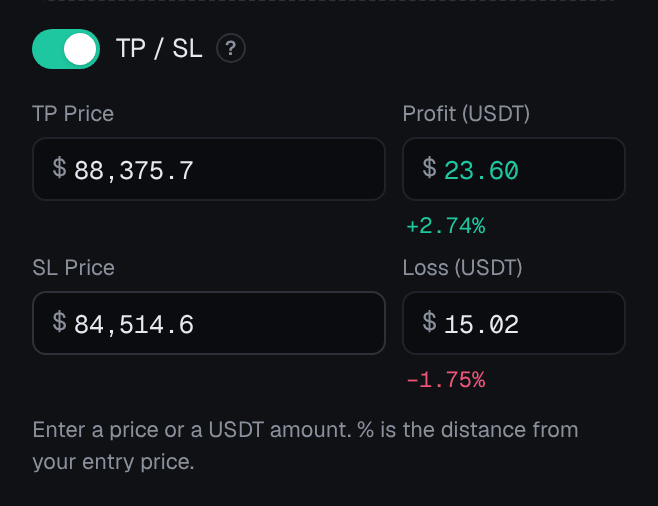
The take profit and stop loss fields appear in the order panel.
- Enter a price or an amount
Type a TP Price and SL Price, or a Profit (USDT) and Loss (USDT). The panel shows how far each level is from your entry, as a percentage.
- Check the direction and confirm
For a buy, TP sits above the entry and SL below it. For a sell it is the other way round. Then check the summary and confirm.
Which price triggers your levels
TP and SL trigger on the price your position would close at. A buy closes at the Bid, so its levels watch the Bid. A sell closes at the Ask, so its levels watch the Ask.
This matters most for sells and for tight stops. Say you are short gold with an SL at 2,430, and the quote moves to Bid 2,428 and Ask 2,431. The Ask has crossed 2,430, so your stop triggers, even though the Bid is still below it. Showing the bid and ask lines in the chart settings makes this easier to see.
Choosing sensible levels
The order panel will accept almost any level, so the judgment is yours. A few habits help:
- Put the stop where your idea is wrong, for example just beyond a recent swing low for a buy, rather than at a round USDT amount picked for comfort.
- Then size the trade to fit the stop. If the right stop is far away, trade smaller rather than moving the stop closer.
- Leave room for the spread and normal swings. A stop only slightly beyond the current Bid or Ask can be hit by ordinary noise.
- Check the reward against the risk. If the TP is closer than the SL, each win has to cover a bigger loss.
Position Sizing turns this into a repeatable method.
Changing or removing TP / SL on an open position
- Find the position
Open the Open Positions tab below the chart. The TP / SL column shows the current levels.
- Open Edit TP / SL
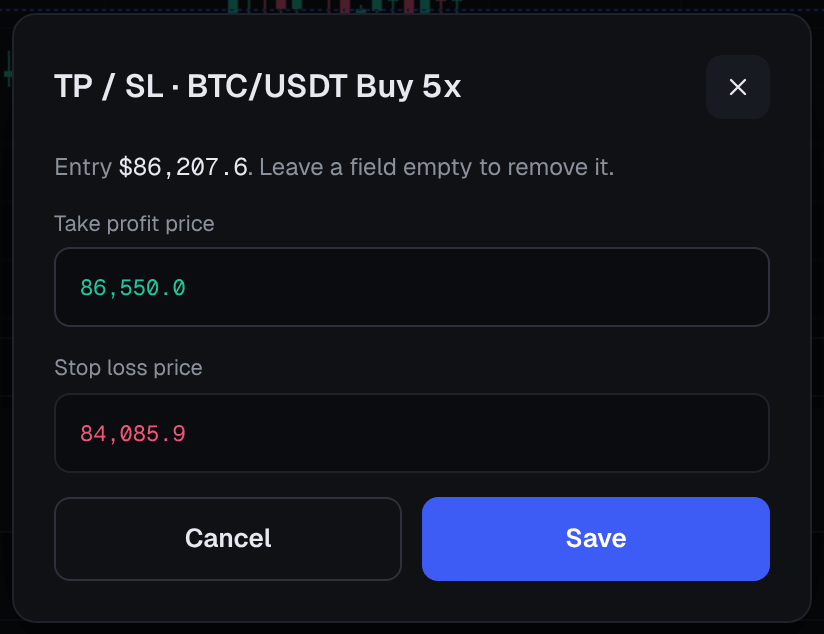
In the Actions column, choose Edit TP / SL. A dialog opens with the price fields.
- Change or clear a level
Type a new price, or empty a field to remove that level entirely.
- Save and check
Save the change and check the TP / SL column shows what you expect.
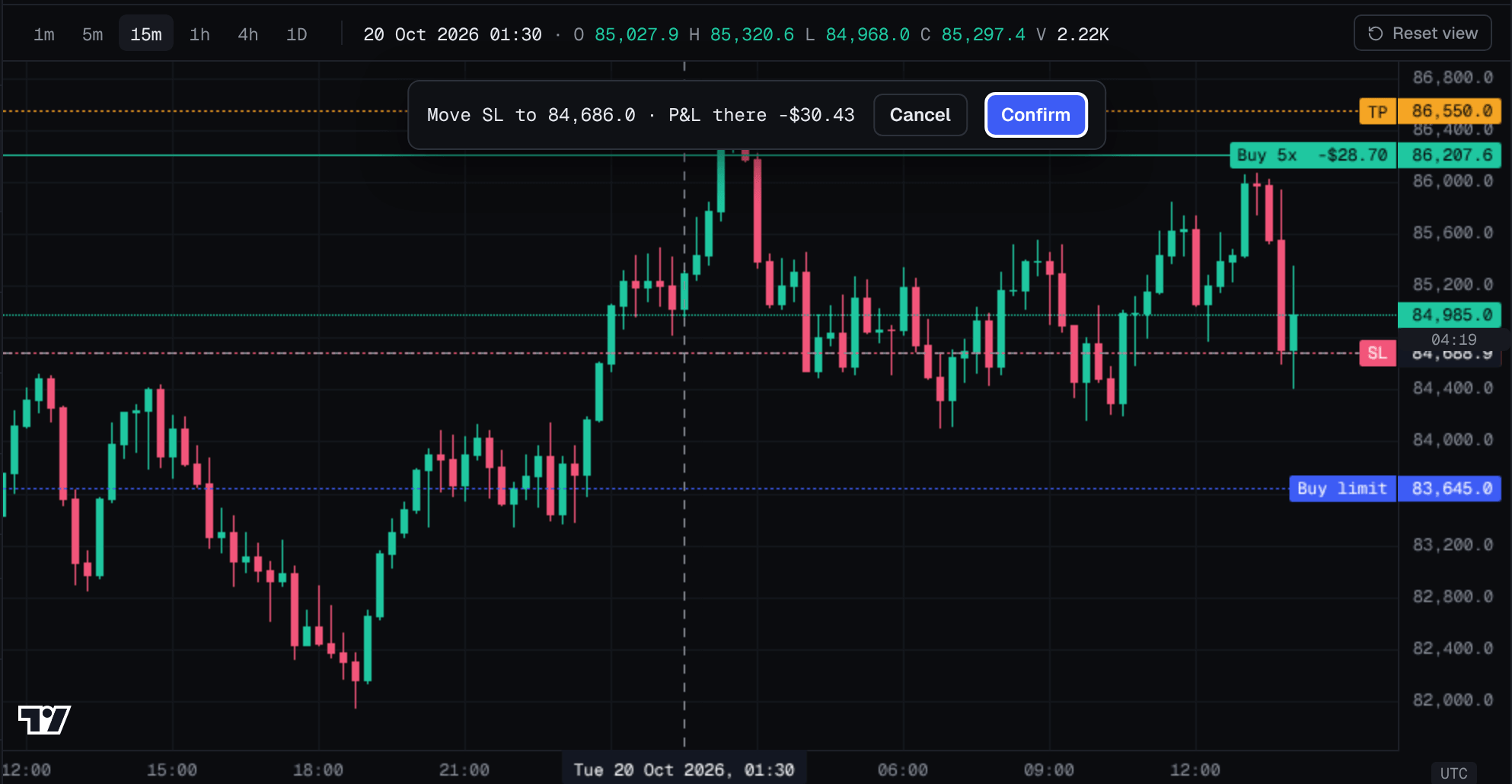
On desktop you can also drag the TP or SL line on the chart to a new price. The platform asks you to confirm before the change is applied, so a slip of the mouse does not move your stop by accident.
Trailing stops: doing it by hand
A trailing stop follows the price as it moves in your favor, keeping a set distance behind it, and never moves back. Some platforms automate this. Traders Portal does not currently offer an automatic trailing stop, so you trail by moving your SL yourself.
| Method | How you move the SL | Strength | Weakness |
|---|---|---|---|
| Fixed distance | Keep it a set distance behind the best price | Simple and mechanical | Ignores chart structure |
| Structure | Move it below each new higher low (for a buy) | Follows how the market moves | Wider, and needs judgment |
| Break-even step | Move it to your entry once the trade is in profit by a set amount | Removes the starting risk | Easily stopped out by normal swings |
Break-even is not quite zero: the spread, fee and any swap mean a stop at your entry price still closes slightly negative. The chart settings can show a break-even line for your position, which helps here.
- Decide the rule before you enter
Write down the method and the distance, for example "trail 2,500 behind the highest price".
- Set price alerts at your trigger levels
Use Account → Alerts or the bell on the market row so you are told when it is time to move the stop.
- Move the SL when the alert fires
Use Edit TP / SL, or drag the SL line on the desktop chart, and confirm.
To bank part of a winner instead, desktop Instant Trade can close 25% or 50% of a position. Scaling In and Out, Trailing Stops and Partial Take-Profit covers those techniques in depth.
Conclusion
On Traders Portal, the TP / SL switch sets your exits as prices or USDT amounts, Edit TP / SL and the desktop chart lines let you change them, and an empty field removes them. Levels trigger on the closing price, and a stop can slip in fast markets. Trailing is a manual job, so decide the rule before you enter and use alerts to tell you when to act.
Related reading
FAQs
- Does Traders Portal offer an automatic trailing stop?
- Not at the moment. You can trail a stop by hand instead: move your SL with Edit TP / SL on the open position, or drag the SL line on the desktop chart.
- Will my stop loss always fill at exactly my price?
- No. Once the price reaches your level, a stop loss closes the position at market, so in a fast market or after a price gap it can fill at a worse price than the one you set.
- Which price triggers my TP and SL?
- The price your position would close at. A buy closes at the Bid, so its TP and SL trigger on the Bid; a sell closes at the Ask, so its levels trigger on the Ask.
- How do I remove a take profit or stop loss?
- In the Open Positions tab, open Edit TP / SL on the position, clear the field you want to remove and save. An empty field means that level is removed.
- Should I set my stop as a price or as a loss amount?
- Both end up as a price level. A price suits a stop placed at a chart level; a Loss (USDT) amount suits a stop sized to a fixed risk. Either way, check that the resulting price makes sense on the chart.