Placing Market, Limit and Stop Orders on Traders Portal
How to place market, limit and stop orders on Traders Portal: direction, size in USDT or lots, leverage, TP / SL, and the summary to check before you confirm.
Every trade on Traders Portal starts in the order panel on the right of the trade screen. You choose a direction and an order type, set a size and leverage, add a take profit and stop loss, then check the summary before you confirm. Each choice changes what the trade costs and how much it can lose.
This guide walks through market, limit and stop orders using the real labels, with worked numbers for each. If you want the theory behind the order types first, read Order Types Explained. If the trade screen is new to you, start with the Platform Tour.
Open a trade on Traders Portal
Placing a market order
A market order opens a position straight away at the current price. Use it when getting in now matters more than the exact price.
- Open the market
Go to the trade screen for the market you want, for example /trade/GOLD, or pick it from the Markets page.
- Choose Buy or Sell
Press Buy if you expect the price to rise, or Sell if you expect it to fall. Buys fill at the Ask, sells at the Bid.
- Select the Market tab and set your size
Use the USDT / Lots toggle to enter an Amount in USDT or a Volume in lots.
- Set leverage
Press Leverage: Nx to open the Adjust Leverage slider. You choose leverage per order, up to the maximum shown in the order panel for that market.
- Add TP / SL
Turn on the TP / SL switch and enter a stop loss, and a take profit if you use one, as a price or as a USDT amount.
- Check the summary and confirm
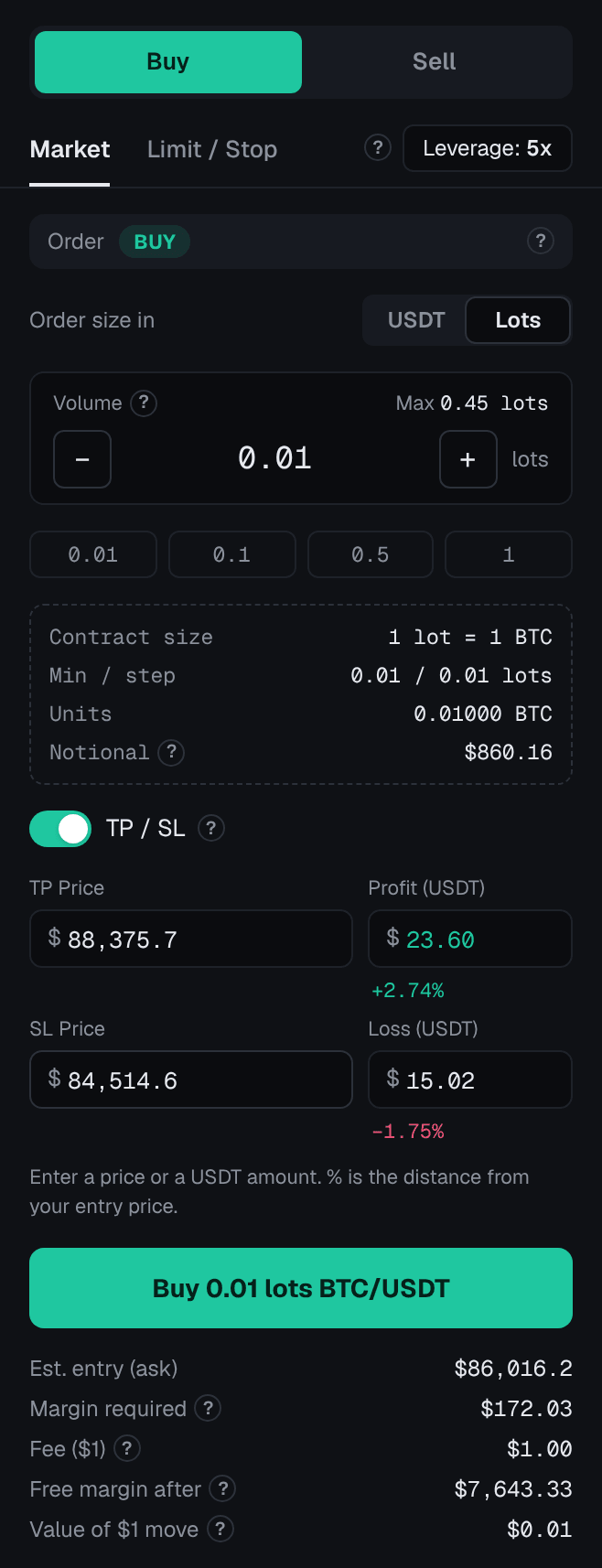
Read Est. entry, Margin required, Fee, Free margin after and Value of $1 move, then confirm with the button at the bottom of the panel. The position appears in Open Positions.
Setting your size: USDT or lots
Both modes describe the same trade; pick the one that matches how you think about size.
| USDT (Amount) | Lots (Volume) | |
|---|---|---|
| What you enter | The position's value in USDT | The number of lots |
| Controls | A 0–100% slider | −/+ buttons and quick picks 0.01, 0.1, 0.5 and 1 |
| What the panel shows | The value and the units it buys | Contract size, minimum and step, units and notional |
| Good for | Thinking in money | Thinking in contract units, such as ounces |
Notional means the full value of the position. With the Amount set to 1,200 USDT on BTC/USDT and the Ask at 60,000, you buy 1,200 ÷ 60,000 = 0.02 BTC. At 5x leverage the margin is 1,200 ÷ 5 = 240 USDT, and a 500-dollar move in Bitcoin changes your result by 500 × 0.02 = 10 USDT. When an amount doesn't buy a whole number of lots, it is rounded down to the lot step, so the position can be a little smaller than the amount you typed: the lots shown under the box are what you get.
The slider's 100% is the largest position your available margin allows at the chosen leverage. That leaves no buffer for losses, so treat it as a ceiling, never a target. Position Sizing shows how to work out a size from the amount you are willing to lose.
Placing a limit or stop order
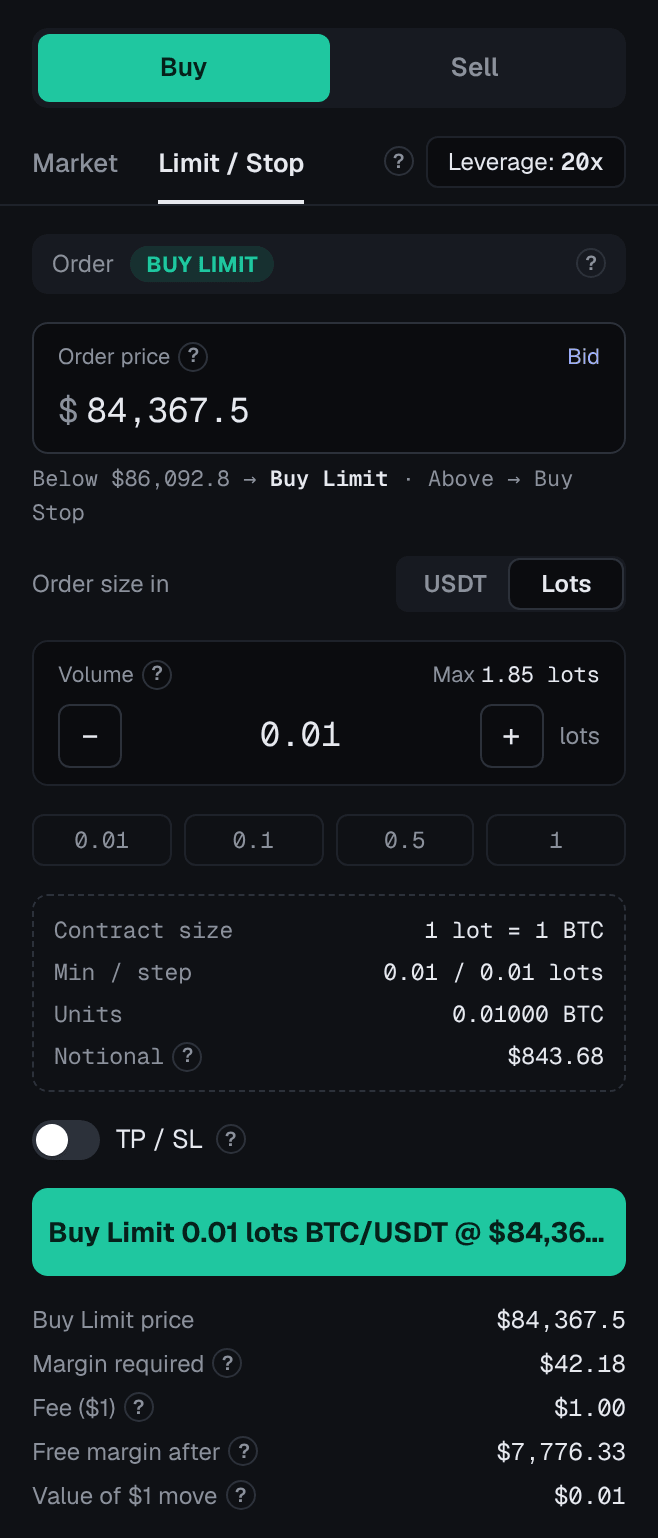
A pending order waits until the price reaches a level you choose. On Traders Portal there is one tab for both, Limit / Stop, and the type follows the price you enter compared with the current quote.
| You enter | Compared with now | Order type | Typical use |
|---|---|---|---|
| Buy at 58,500 | Below the Ask | Buy Limit | Buy cheaper than now |
| Buy at 61,500 | Above the Ask | Buy Stop | Buy if the price breaks higher |
| Sell at 62,000 | Above the Bid | Sell Limit | Sell higher than now |
| Sell at 58,000 | Below the Bid | Sell Stop | Sell if the price breaks lower |
- Choose Buy or Sell, then Limit / Stop
The direction comes first, because it decides whether your price is compared with the Ask or the Bid.
- Enter your price
Type the price you want. Check that the order type shown matches your intention; a price on the wrong side of the quote gives you the opposite type.
- Set size, leverage and TP / SL
Exactly as for a market order. The TP and SL are measured from your order price.
- Confirm and find it in Pending Orders
The order waits in the Pending Orders tab until it fills or you cancel it. Its margin is reserved immediately. On desktop you can drag a pending order's line on the chart to a new price; the platform asks you to confirm the change.
Two details are worth remembering. A stop order becomes a market order once its price is reached, so in a fast market or after a gap it can fill worse than your price. And Traders Portal has no stop-limit orders.
Instant Trade on desktop
On desktop, Instant Trade offers one-click market orders with preset sizes, buttons to close 25%, 50% or 100% of a position, a flip button and optional hotkeys. It suits traders who already know their size and want speed. It is also the only way to close part of a position; the regular Close button closes all of it.
Reading the summary before you confirm
The summary is your last chance to catch a mistake. Est. entry is the expected fill price. Margin required is position value ÷ leverage. Fee is the trading fee for this order; Traders Portal charges the fee shown in the order panel before you confirm. Free margin after is what stays available to open trades and absorb losses. Value of $1 move turns price changes into USDT. If you already hold the opposite position in the same market, the panel shows Margin required (hedged) for the matched volume.
For more on placing and adjusting your exits, see Setting SL/TP and Trailing Stops.
Conclusion
Placing an order on Traders Portal follows the same pattern every time: direction, order type, size, leverage, TP / SL, then the summary. Market orders fill now at the Ask or Bid; on the Limit / Stop tab your price decides the type, and pending orders reserve margin straight away. Start small, keep a stop loss on every trade, and read the summary before every confirm.
Related reading
FAQs
- Why did my market order fill at a slightly different price from the one I saw?
- A market order fills at the price available when it reaches the market: the Ask for a buy, the Bid for a sell. In a fast market that price can change between your click and the fill, so the result can differ a little from Est. entry.
- How do I choose between a Buy Limit and a Buy Stop?
- You do not pick it from a list. On the Limit / Stop tab the order type follows the price you enter: below the current Ask it becomes a Buy Limit, above the Ask it becomes a Buy Stop.
- Does a pending order use margin before it fills?
- Yes. A Limit or Stop order reserves its margin as soon as you place it, which lowers your free margin until the order fills or you cancel it.
- Should I set my size in USDT or in lots?
- Both describe the same trade. USDT is often simpler when you are starting out; lots are handy when you think in contract units, such as ounces of gold, or follow a lot-based sizing method.
- Can I place a stop-limit order?
- No. The Limit / Stop tab offers buy and sell limit orders and buy and sell stop orders. A stop order becomes a market order when its price is reached, so it can fill at a worse price in a fast market.