Your First Trade on Traders Portal: Step-by-Step
A complete walkthrough of one small BTC/USDT trade: choosing a size, setting leverage and a stop loss in USDT, reading the order summary, then managing and closing the trade.
Reading about trading only gets you so far. At some point you place an order, watch it move, and close it, and that first round trip teaches you more about spreads, margin and stop losses than any definition. The goal of a first trade is not to make money. It is to learn the controls while the stakes are small enough that a mistake costs very little.
This walkthrough follows one small Bitcoin trade on Traders Portal from start to finish: choosing the size, setting leverage and a stop loss in USDT, reading the order summary, then watching, adjusting and closing the position. Every number is illustrative, and every label matches what you will see on screen.
Before you start
Run through this short checklist:
- Practise first if you can. On a computer, the top bar has a Live / Demo switch. Pressing Demo requests a demo account with a virtual balance, which you can reset later from the Wallet. Everything in this guide works the same way there.
- For a live trade, your account needs to be verified and funded. Account Setup, Verification and Deposits covers that.
- Know the basics. If stop losses are new to you, read Stop Loss and Take Profit first.
The plan for this trade
Decide everything before you touch the order panel. Here is the plan we will follow.
Notice the order of decisions. The stop loss came from the loss you can accept, not from a guess about where the price is going. That habit matters far more than which market you pick.
Placing the trade, step by step
- Open the BTC/USDT trade screen
Choose Trade in the top bar and pick BTC/USDT from the asset list, or use Search markets (press / on a keyboard). The chart sits in the middle and the order panel on the right. Check the Bid and Ask.
- Choose Buy and the Market tab
Press Buy at the top of the order panel and make sure the Market tab is selected. A market order fills straight away at the current price; the Limit / Stop tab is for orders that wait for a price you choose.
- Enter the size in USDT
Set the size toggle to USDT and type 1,200 into Amount. Under the box you will see the equivalent in BTC (about 0.02) and in lots. An amount that doesn't buy a whole number of lots is rounded down to the lot step, so check the lots line: that is the size you will get. Avoid the 0–100% slider for now: 100% means the largest position your margin allows, not a sensible size.
- Set the leverage
Press the Leverage button, move the Adjust Leverage slider to 5x and press Confirm. You can choose up to the maximum shown in the order panel for that market, but you do not have to. The pop-up also shows the largest position you could open at that setting, and reminds you that your whole account backs your positions.
- Add your stop loss and take profit
Switch on TP / SL. Type 20 into Loss (USDT) and 40 into Profit (USDT). The panel fills in SL Price (about 59,000) and TP Price (about 62,000) and shows each one's distance from entry in percent.
- Read the order summary
Under the button, check Est. entry (the Ask), Margin required (240 USDT), Fee, Free margin after and Value of $1 move (0.02). If any number surprises you, stop and find out why.
- Place the order
The big button spells out the whole order, for example "Buy $1,200.00 of BTC/USDT". If your amount was rounded down to the lot step, the button shows the smaller value you are actually buying. Press it once. A message confirms the position has opened.
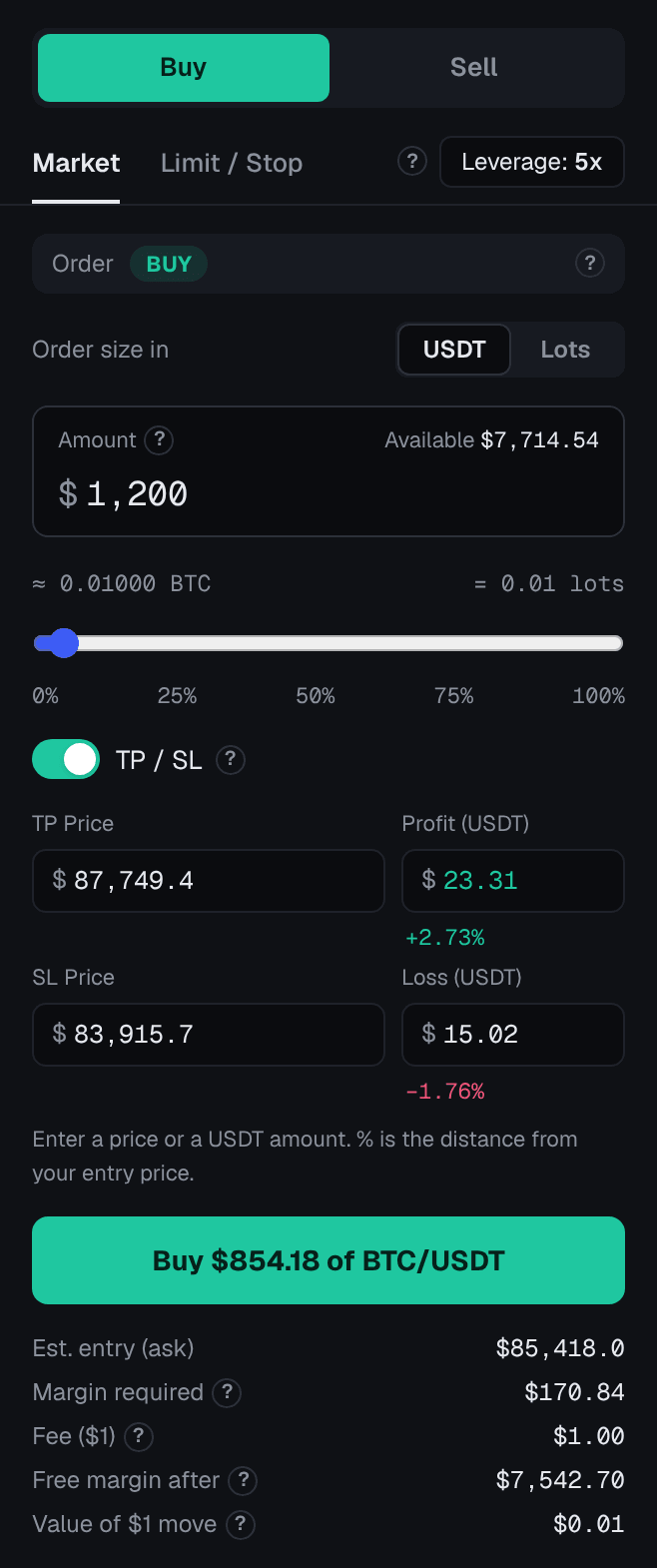
The real trade fee is the fee shown in the order panel before you confirm; in the examples below we use a made-up 0.1% of the position value each way, purely to show the arithmetic: 1,200 × 0.1% = 1.20 USDT to open. Free margin after would then read 1,000 − 240 − 1.20 = 758.80 USDT.
Watching your position
Your trade now appears in the Open Positions tab under the chart, with its Entry Price, Mark Price, Margin, PnL (ROE) and TP / SL.
The PnL is worked out at the price you could close at right now, which for a buy is the Bid. Straight after opening, with the Bid at 59,990, it shows (59,990 − 60,000) × 0.02 = −0.20 USDT. That is the spread at work.
ROE is the PnL as a percentage of the margin. If the Bid rises to 60,480, PnL is (60,480 − 60,000) × 0.02 = +9.60 USDT, and ROE is 9.60 ÷ 240 = 4.0%. A high ROE on a small trade can feel exciting; judge the trade by the USDT amount instead.

Changing your stop loss or take profit
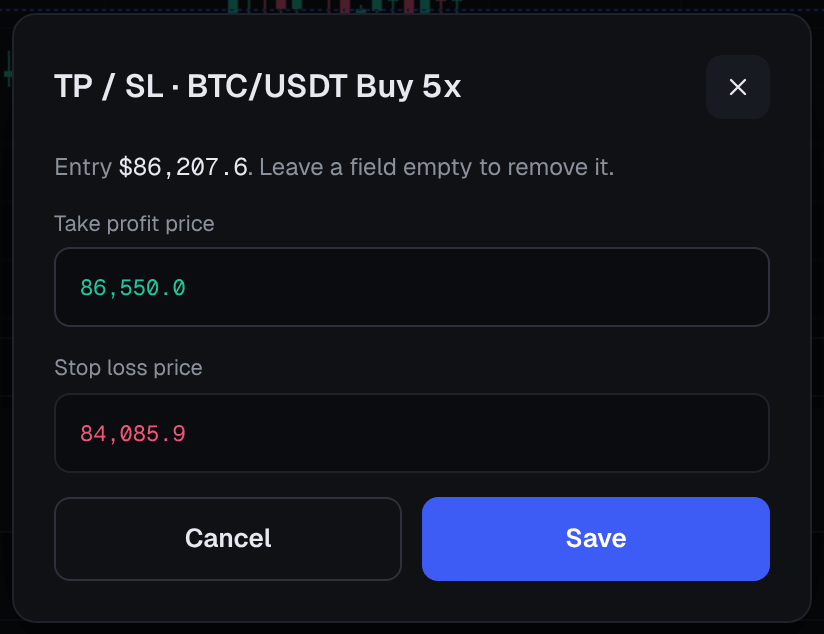
Plans can change once a trade is moving. Press Edit TP / SL on the position (the pencil icon on desktop) to open a dialog with the take profit and stop loss prices. Type a new price and press Save. Leaving a field empty removes that level. On desktop you can also drag the TP and SL lines on the chart, with a confirmation before the change is sent.
Say the Bid has reached 60,600. You could move the stop loss up to 60,000, your entry, so the trade can no longer lose much more than its fees. That is often called moving to break-even. There is no automatic trailing stop, so to follow the price you move the stop yourself.
Closing the trade
A position closes in one of three ways: the take profit is hit, the stop loss is hit, or you press Close in the Actions column. Close shuts the whole position at the current price.
If you hold a position past the daily swap time shown in the market details, a daily swap is added too, as explained in Funding, Swaps and Trading Costs.
Reading Closed Positions
Open the Closed Positions tab to see the finished trade with its Exit Price, the time it Closed, the Reason (Closed, Take profit, Stop loss or Liquidation), Fees, Swap and Net PnL. Hovering over Net PnL shows how it adds up: the gross result, open fee, close fee and swap.

Conclusion
Your first trade is practice with real controls. Plan the trade before you open the panel, size it from the loss you can accept, set the stop loss with Loss (USDT), and read the order summary before you press the button. Then watch how the spread, the Bid and the fee show up in your PnL, adjust your stop only in your favor, and finish by reading the result in Closed Positions. Repeat that routine on small sizes until it feels automatic.
Related reading
FAQs
- Should I practise on a demo account first?
- It is a sensible first step. A demo account uses virtual funds, so you can learn the order panel, stop losses and closing a position without risking money. Keep in mind that trading real money feels different, so start small when you switch to live.
- Is the Amount in the order panel the money I am risking?
- No. In USDT mode, Amount is the full value of the position. The money locked to hold it is shown as Margin required, and the amount you could lose depends on how far the price moves and where your stop loss is.
- Why is my position slightly negative as soon as I open it?
- Because of the spread. A buy opens at the Ask, but its profit and loss is measured at the Bid, the price you could sell at right now. The gap between the two, plus the trade fee, means every new position starts a little in the red.
- Can I close only part of my position?
- The Close button closes the whole position. On desktop, Instant Trade has buttons to close 25% or 50% of a position. Another approach is to open your position in smaller pieces so you can close them separately.
- Will my stop loss always close the trade at exactly my price?
- Not always. A stop loss becomes a market order when the price reaches it, so in a fast market or after a price gap it can fill at a worse price than the one you set.