Stop Loss and Take Profit: Your First Safety Net
How stop loss and take profit orders close a trade for you, where traders place them, how to size a position from your stop, and why a stop can still slip in fast markets.
Every trade can go wrong, and markets do not wait for you to be watching. A stop loss closes your position automatically if the price moves against you by an amount you chose in advance. A take profit closes it automatically when the price reaches your target. Together they turn a trade from an open-ended bet into a plan with a defined exit on both sides.
This lesson explains how both orders work, how they are triggered on Traders Portal, where traders tend to place them, how to size a position from your stop, and the limits every trader should understand.
Open a trade on Traders Portal
What stop loss and take profit orders do
Both are instructions attached to a position that close it for you:
- A stop loss (SL) sits on the losing side of your entry. For a buy it goes below the entry; for a sell it goes above.
- A take profit (TP) sits on the winning side. For a buy it goes above the entry; for a sell it goes below.
When either level is reached, the position closes and the result is added to or taken from your balance. In the Closed Positions tab, the Reason column then shows Stop loss or Take profit, so you can see exactly how each trade ended.
How they are triggered on Traders Portal
Stops and targets are checked against the price you would close at. A buy closes at the Bid, so its TP and SL watch the Bid. A sell closes at the Ask, so its TP and SL watch the Ask. If you are not sure why that matters, Bid, Ask, Spread and Why They Matter shows how a widening spread can trigger a stop early.
| Stop loss | Take profit | |
|---|---|---|
| Job | Limits a loss | Locks in a gain |
| Placed for a buy | Below the entry | Above the entry |
| Placed for a sell | Above the entry | Below the entry |
| Checked against | Bid for a buy, Ask for a sell | Bid for a buy, Ask for a sell |
| Fills at | Market, so it can slip | Your level or better |
| Reason in Closed Positions | Stop loss | Take profit |
Setting TP / SL on Traders Portal
You can attach both levels before the trade opens or add them afterwards.
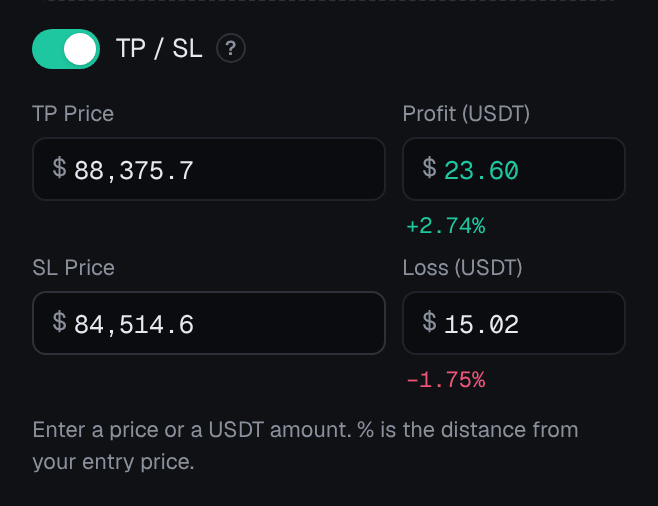
- Turn on TP / SL in the order panel
On the trade screen, after choosing Buy or Sell and a size, switch on TP / SL.
- Enter a price or an amount
Type a TP Price and SL Price, or switch to a Profit (USDT) and Loss (USDT) amount and let the panel work out the price. Either way it shows the percentage distance from your entry.
- Check the numbers, then confirm
Read the Loss (USDT) figure. It is the amount you stand to lose if the stop is hit at your level, before fees and any slippage. If it is too large, reduce the size.
- Adjust it later if you need to
In Open Positions, use Edit TP / SL to change or add a level. Clearing a field removes that level. On desktop you can also drag the TP and SL lines on the chart and confirm the change.
Where to place a stop loss
A useful stop answers one question: at what price is my reason for this trade clearly wrong? Three ideas help:
- Use the chart, not a round number. If you bought because the price was holding above a support level, your idea is wrong if it breaks clearly below it. Put the stop a little beyond that level, not exactly on it.
- Leave room for normal noise. Every market wobbles. A stop closer than the usual back-and-forth will often be hit before the trade has a chance to work. Remember to allow for the spread too.
- Never let the stop be decided by how much you hope to lose. Choose the level first, then adjust the size.
Sizing a trade from your stop
This is the habit that does most to protect an account. Decide how much of your balance you are willing to lose on one trade, often a small percentage, then work backwards.
The same works for a sell. If you sell 0.5 ETH at 3,000 with a stop at 3,060 and a target at 2,880, the planned loss is (3,060 − 3,000) × 0.5 = 30 USDT and the planned gain is (3,000 − 2,880) × 0.5 = 60 USDT. Position Sizing and Risk/Reward Ratio and Win Rate take this further.
Where to place a take profit
A take profit is a planned exit for a winning trade. Common approaches are to place it just before the next level where the price has turned in the past, or at a fixed multiple of your stop distance, such as twice as far. A target that is very far away may rarely be reached. One that is very close may not cover your losses on the trades that hit their stops.
Some traders prefer to take part of the profit early. On desktop, Instant Trade has 25% and 50% close buttons for that; the regular Close button closes the whole position.
Moving your stop as the trade works
Once a trade is well in profit, some traders move the stop closer, for example to the entry price, so the trade can no longer turn into a loss beyond costs and slippage. Doing this step by step as the price moves is called trailing a stop.
Traders Portal does not offer an automatic trailing stop. You can trail manually by updating the SL with Edit TP / SL, or by dragging the SL line on the desktop chart. Setting SL/TP and Trailing Stops on Traders Portal shows how.
The one move to avoid is the opposite: pushing a stop further away because the price is getting close to it. That turns a planned loss into an unplanned, larger one.
What a stop loss cannot do
A stop loss is a safety net, not a wall. Once triggered, it closes at the next available market price.
Conclusion
A stop loss closes a losing trade at a level you chose in advance, and a take profit closes a winning one at your target. On Traders Portal you set both in the order panel with TP / SL, as a price or a USDT amount, and adjust them later with Edit TP / SL. Place the stop where your idea is wrong, size the position so the loss there is acceptable, and remember that a stop fills at market and can slip. Used on every trade, these two orders are the simplest way to keep any single mistake small.
Related reading
FAQs
- What is the difference between a stop loss and a take profit?
- A stop loss closes your position automatically to limit a loss if the price moves against you. A take profit closes it automatically to lock in a gain once the price reaches your target.
- Does a stop loss always close my trade at exactly my price?
- No. Once your stop price is reached, the position closes at the next available market price. In fast markets or when a price gaps, that can be worse than your stop level, which is called slippage.
- Can I add or change a stop loss after opening a trade?
- Yes. Use Edit TP / SL next to the position in Open Positions to set, change or remove either level. Leaving a field empty removes it. On desktop you can also drag the TP and SL lines on the chart.
- How far away should my stop loss be?
- There is no single right distance. Many traders place it where their trade idea is clearly wrong, leave room for normal price swings and the spread, and then choose a position size so that the loss at the stop is an amount they can accept.
- Does the platform offer trailing stops?
- Automatic trailing stops are not currently offered. You can trail a stop yourself by moving it with Edit TP / SL, or by dragging the SL line on the desktop chart, as the price moves in your favor.